
What Is a DXF File? A Practical Guide for Laser Cutting and Fabrication

08 Jul 2026
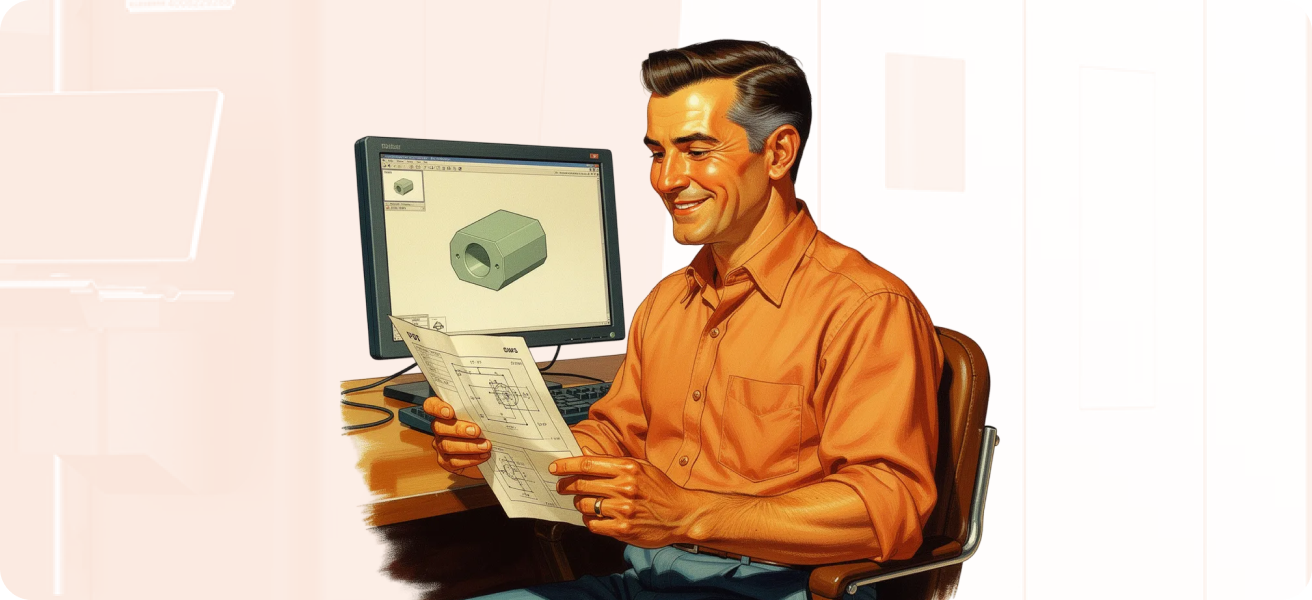
If you run a laser cutting shop or work in metal fabrication, you've handled hundreds - maybe thousands - of DXF files. But what is a DXF file, exactly? And why does file quality matter so much when you're trying to quote jobs quickly and get parts to the machine?
This guide explains DXF files in plain terms: what they are, how they're used in fabrication, and what happens when a customer sends you a messy one.
What is a DXF file?
A DXF file is a CAD file format used to share 2D drawing data between different software systems. The name stands for Drawing Exchange Format. AutoCAD's developer, Autodesk, created it in the 1980s as a way to move drawings between programs that couldn't read each other's native files.
Unlike proprietary formats, DXF files are text-based and open. Any CAD program can read them. That makes DXF the common language of fabrication - when a customer sends you a part to cut, there's a good chance it arrives as a DXF.
The format stores vector geometry: lines, arcs, circles, polylines, and other shapes defined by mathematical coordinates. This is exactly what a laser, plasma, or waterjet machine needs to follow a cutting path.
DXF vs DWG: What's the difference?
You'll often receive both DXF and DWG files. Here's how they differ:
DWG is AutoCAD's native format. It's proprietary and binary, meaning it's compact but requires licensed software to open. A DWG file might be 1 MB.
DXF is the exchange format. It's text-based and readable by virtually any CAD program. The same drawing saved as DXF might be 6-10 MB - roughly 10 times larger - because text takes more space than binary data.
For fabrication work, either format works. If you're hitting file size limits when uploading to quoting software or a web portal, ask your customer to save as DWG instead. The geometry is identical; only the packaging changes.
What are DXF files used for in fabrication?
In a typical fabrication workflow, DXF files serve several purposes:
Quoting: The geometry in a DXF tells you the cut length, number of pierces, and overall part dimensions. Combined with material thickness and your machine rates, this is enough to generate an accurate price. Modern laser cutting quoting software can extract this data automatically.
Nesting: Before cutting, parts get arranged on a sheet to minimize waste. The DXF provides the exact outlines needed for nesting software to calculate material usage.
Toolpath generation: Your CAM software reads the DXF geometry to generate the actual cutting path - the route the laser head will follow, including pierce points and lead-ins.
Production documentation: Part numbers, quantities, and revision history often travel with the DXF through your shop floor systems.
The key advantage of DXF over other formats is that the geometry is editable. If something needs fixing before it goes to the machine, you can open the file and make changes.
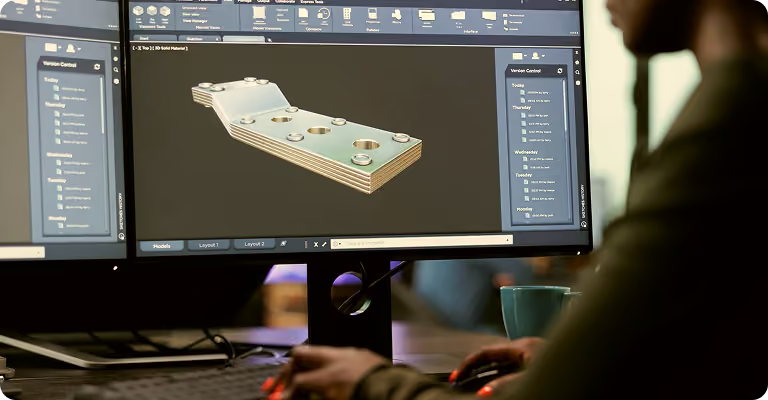
Why DXF file quality matters
Here's where things get complicated. A DXF file can look perfect on screen and still cause problems in quoting or production.
Industry veterans who've processed thousands of customer drawings describe it this way: from a distance, or on a printed page, a drawing might look fine. Zoom in 500%, and you'll find lines that don't quite meet, duplicate geometry stacked on top of itself, or paths that loop back unexpectedly.
These aren't cosmetic issues. They affect your bottom line.
The quoting problem
If your quoting system calculates cut time from the geometry, errors compound. Open contours might register as separate pieces, adding pierce time. Overlapping lines might double your calculated cut length. Even small discrepancies add up across a batch of parts.
The alternative - eyeballing the drawing and estimating by hand - introduces a different problem. Two people looking at the same part might come up with different cut lengths. Your pricing becomes inconsistent, and you never know your true margins until the job hits the floor.
The production problem
What passes through quoting might fail at the machine. A laser following a path with a tiny gap will stop, reposition, and start a new pierce. That's lost time and a potential quality defect. Overlapping lines might cause the head to travel the same path twice, or worse, reverse direction mid-cut.
The machine reveals what the human eye missed.
Common DXF file problems
After years of processing customer drawings, fabrication shops see the same issues repeatedly:
- Lines that don't meet: Two line segments that look connected but have a tiny gap between endpoints. On screen, they appear joined. Mathematically, they're not. The machine treats them as separate paths.
- Overlapping geometry: Two identical lines stacked directly on top of each other. Invisible unless you try to select or move one. The laser might cut this path twice, or the toolpath generator might produce unexpected results.
- Open contours: A shape that should be closed but has a gap somewhere in the profile. This breaks nesting calculations and may prevent the part from cutting correctly.
- Title blocks and annotations: A drawing intended for print includes borders, revision tables, material callouts, and multiple views. For quoting and cutting, you only need the actual part outline - but separating signal from noise takes time.
- Multiple views: The same part shown from the top, side, and in section. Great for a machinist reading a print; useless clutter for a laser. If you're not careful, quoting software might try to price all views as separate parts.
- Unclear layers: CAD programs organize geometry on layers, but naming conventions vary wildly. One customer's "Layer 0" is another's "CUT" is another's "Gordon", named after the drafter. You can't reliably infer meaning from a layer name - it's a hint at best.
- Internal lines with unclear intent: Lines inside a part outline could mean fold lines, etch marks, engravings, or features to be drilled and tapped. Without explicit notes, you have to ask.
What happens when a customer sends a bad DXF file?
This depends on your workflow and how much the job is worth.
Manual cleanup: Someone opens the file in CAD software, fixes the geometry issues, and saves a clean version. This takes time - anywhere from a few minutes for simple fixes to hours for complex drawings. If you're only winning 30-40% of the jobs you quote, that's a lot of cleanup effort on work you might not land.
Slower quotes: Every bad drawing adds friction to your quoting process. Instead of uploading a file and getting a price in seconds, you're back to manual work. Response time suffers, and in fabrication, speed wins jobs.
Back-and-forth with the customer: Sometimes you can't figure out what the customer wants from the drawing alone. Those internal lines - are they bends? Engravings? Features you should ignore? Each clarification email adds delay.
Quoting what you received: Some web-based quoting systems take the opposite approach. You upload a file; it prices exactly what's there. If the title block is included, you're paying to cut the title block. This puts the onus on the customer to provide clean files - and prices quickly teach them the cost of sending garbage.
Production errors: If a problematic file makes it through quoting without being caught, the machine operator discovers the issue. Now you're fixing problems under production pressure, with a machine idling and a customer expecting delivery.
Tools like Drawing Doctor exist specifically to catch and fix these problems before quoting. The software identifies overlapping lines, open contours, and other geometry issues, then provides tools to correct them. Catching problems early - before the quote goes out - saves time on the back end.
DXF files and laser cutting
For laser cutting specifically, a good DXF file has these characteristics:
- Closed profiles: Every cut-out shape forms a complete, closed path. The laser can follow the contour in one continuous motion without repositioning.
- No duplicate geometry: Each line exists only once. No stacked or overlapping paths.
- Correct scale: The drawing is 1:1 with the intended part size. A 100mm part measures 100 units in the file. Sounds obvious, but scale errors happen more often than you'd think.
- Clean intersections: Where lines meet, they share a common endpoint. No gaps, no overshoots.
- Separated parts: If the drawing contains multiple parts, each is distinct and identifiable. No overlapping outlines.
- Minimal extra content: Just the geometry you need to cut. No title blocks, revision tables, dimensions, or auxiliary views - unless you specifically need that information for production documentation.
When a file meets these criteria, it flows straight through your quoting and CAM systems without manual intervention. That's the goal.
How to prepare a better DXF file
If you're sending files to a fabrication shop - or coaching your customers on how to send files to your web store - these practices help:
- Export at 1:1 scale: Set your CAD system to export in real-world units. If you designed a 200mm bracket, the exported file should measure 200 units.
- Check for open contours: Most CAD programs have a verification command that highlights unclosed shapes. Run it before exporting.
- Remove duplicate geometry: Some CAD systems have a "delete duplicates" or "overkill" command that finds and removes overlapping lines.
- Isolate the cut geometry: If your drawing includes title blocks, dimensions, or multiple views, copy only the actual part outline to a new file before exporting. Or use a layer structure where the cut geometry is clearly separated.
- Use explicit layer names if adding intent: If you're indicating bend lines, etch marks, or other secondary operations, put them on clearly named layers - "BEND_UP", "ETCH", "DRILL_AND_TAP" - rather than generic names.
- Provide a clean DXF alongside your full drawing: Send the complete drawing as a PDF for reference, and a stripped-down DXF containing only the cut geometry for production.
- Convert PDFs when necessary: If you only have a PDF, some shops can convert it to a usable CAD file. The quality depends on how the PDF was created, but it beats redrawing from scratch.

The real-world answer: there are no rules
Here's the uncomfortable truth about DXF files in fabrication: every customer draws differently. There are no universal standards.
A large manufacturer sending you recurring work has invested years developing their own drafting practices. They're not going to change for your quoting system. If you want their business, you adapt to their drawings - not the other way around.
The leverage flips at the other end of the market. Small one-off orders through a web store don't carry enough margin to justify extensive cleanup work. For these jobs, setting clear guidelines makes sense. If customers want fast quotes and easy ordering, they learn to send clean files.
The shops that handle both ends of this spectrum - big contracts requiring flexibility and high-volume web orders requiring efficiency - invest in tools that can process whatever arrives. Automated quoting systems that identify and fix common drawing issues before pricing let you respond quickly without turning away difficult work.
Beyond the geometry: what else is in a DXF?
A DXF file often contains more than just the cut path. Annotations on the drawing might specify:
- Material and thickness: "316 Stainless, 3mm" written somewhere on the drawing
- Quantity: "QTY: 50" in a title block
- Surface finish or coating: "Powder coat RAL 9005"
- Secondary operations: "Fold 90° on marked lines" or "Drill and tap M6 x 1.0"
- Revision history: Changes tracked from version to version
This information helps with quoting but can't be automatically extracted from geometry. If your workflow relies on reading material specs from drawings, you're still doing some manual interpretation.
For repeat customers or part libraries, capturing this metadata once means you don't re-enter it on every order. A part library lets you save fully-specified parts - geometry, material, processes - and drop them into future quotes without starting from scratch.
Frequently asked questions
What does DXF stand for?
Drawing Exchange Format. It was created by Autodesk in the 1980s to allow different CAD programs to share drawing data.
What's the difference between a DXF and a DWG file?
Both contain the same geometry. DWG is AutoCAD's proprietary binary format - compact but requires compatible software. DXF is text-based, larger, but universally readable by any CAD program.
Is a DXF file the same as a CAD file?
DXF is one type of CAD file. Other common formats include DWG, STEP, IGES, and native formats from various CAD programs. For 2D fabrication work, DXF and DWG are the most common.
Can DXF files be used for laser cutting?
Yes. DXF is the most common format for laser, plasma, and waterjet cutting. The vector geometry translates directly into cutting paths.
Why do DXF files sometimes need cleanup?
CAD programs allow geometry that looks correct but isn't mathematically precise - lines that almost meet, shapes that almost close. These small errors don't matter for viewing or printing but cause problems for CNC machines that follow exact paths.
What's the best file format for laser cutting?
For 2D flat parts, DXF or DWG. For 3D parts where you need to extract flat patterns, native solid model formats (STEP, Parasolid, native SolidWorks or Inventor files) are often better - they contain exact geometry without the title blocks and annotations that clutter production drawings. Modern software can extract sheet metal geometry from 3D models automatically.
Clean DXF files mean faster quotes and fewer production headaches. If you're spending too much time fixing customer drawings, see how Drawing Doctor identifies and corrects common geometry issues before quoting - so you can respond to customers faster and get work to the machine without surprises.
See how Tempus Tools helps fabricators quote faster and smarter.
Share this post
Articles

Resources
Related Posts
Product updates
0
min read
New integration: Tempus Tools + ECI M1 – from quote to order to ERP, seamlessly
At Tempus Tools, we know that speed and accuracy are everything in a laser cutting job shop, and today we’re announcing a new integration that makes both even easier.
We’re now fully integrated with ECI Software’s M1 ERP system.

What does that mean for your job shop?
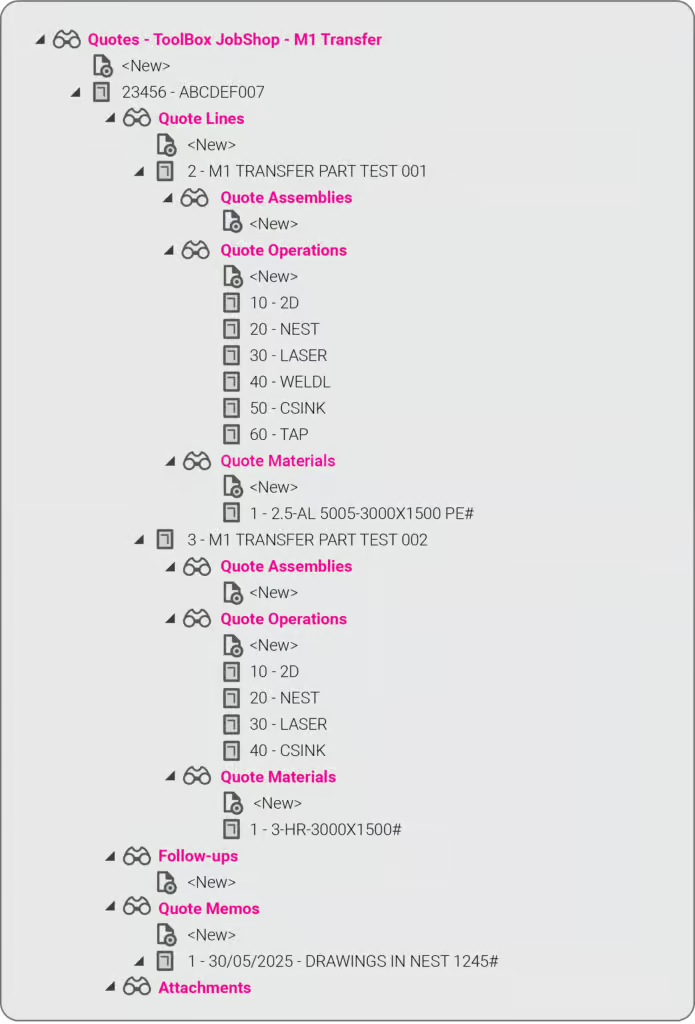
It means you can now send quotes, order details, and production-ready drawings directly from Tempus Tools into your M1 ERP — no more double handling, no more data entry errors, no more jumping between systems.
This integration eliminates any “dead zone” between quoting and production. You get the specialist laser quoting power of Tempus Tools (like lightning-fast nesting, material cost accuracy, and margin control) combined with the operational backbone of M1.
It’s quoting that talks to your shop floor.
We’ve talked about how integrations like Google Drive can supercharge job shop workflows, and this M1 integration is another great example.
Want to learn more or set it up? If you want to avoid the limitations in the generic quoting functions in ERP/MRP software, but still use the rich planning and production features in ERP/MRP software, then get in touch today.
Book a demo or email us at support@tempustools.com and we’ll help you get connected.
Tempus Tools + M1 = quoting to production, finally in sync.
Read blog
Product updates
0
min read
Tempus Tools’ Google Drive integration: 6 ways to supercharge your job shop efficiency
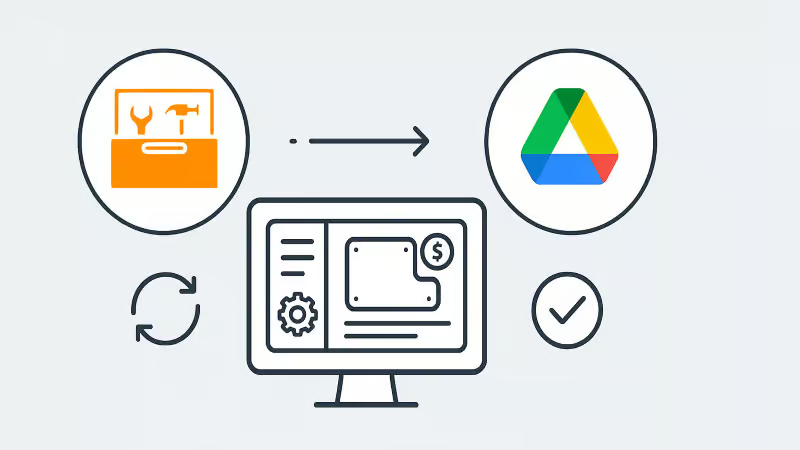
Tempus Tools’ new Google Drive integration automatically saves your quote data and part files to Drive, opening the door to faster, smarter workflows. In this post, we highlight six clever ways job shops are already using it to boost efficiency.
Last month Tempus Tools released a powerful new feature: seamless integration with Google Drive.
Since then, we’ve heard from lots of customers about the innovative ways they have implemented this integration in their job shops, and we wanted to share the best six with you to inspire you to use the feature in your shop.
First, a quick recap: with the Google Drive integration, all your quote data (in CSV format) and production-ready part files can be automatically saved to your chosen Google Drive folder. From here, they can be exported to any number of programs or that data can be manipulated for many use cases, opening up a world of automation, reporting and connectivity for your job shop. We’ve also put together a quick video to show the integration in action.
1. Automate quote data collection for reporting
With every quote automatically saved, you can easily compile and analyse your quote performance over time. Use Google Sheets or your favourite analytics tool to track:
- win/loss rates
- performance across material types
- average order size
- breakdown of secondary processes contributions
This data-driven approach helps you identify trends, optimise pricing and improve customer response times.
2. Connect with ERP/MRP and other business systems
Some apps have native integration with Google Drive, which makes taking in quote data and parts easy, but many need a formal API. Luckily, Google Drive comes with its own API.
Some users have used the Google Drive API to build automations that push quote data directly into ERP, MRP or order management systems. This can streamline order processing, reduce manual data entry and ensure your production schedule is always up to date.
3. Organise your orders by material type
Use the exported quote data to create a parts planner that groups jobs by common material type. This enables you to:
- batch similar jobs for more efficient material usage
- reduce changeover times on machines
- optimise purchasing and inventory management
A simple Google Sheets script or integration with a dashboard tool can make this process nearly automatic.
4. Integrate with project management tools
Connect your quote data with popular tools like ClickUp, Monday.com or Airtable. Build custom dashboards and planners for your factory, visualise job statuses and assign tasks to your team-all based on real-time quoting data. These tools don’t require coding or a developer and anyone can work wonders. These types of projects boost collaboration on the shop floor and keep everyone aligned on priorities.
5. Create a scheduling calendar from time calculations
Use the time estimates in your quote data to automatically populate a production calendar. With a Google Calendar integration, you can:
- visualise machine and operator workloads
- identify bottlenecks before they happen
- easily adjust schedules as new jobs come in
This proactive scheduling helps you deliver on time, every time.
6. Enable automated notifications and workflows
Set up Google Drive triggers (using tools like Zapier or Google Apps Script) to notify your team when new quotes are confirmed as orders, or to kick off downstream processes-like updating CRM records or ordering materials.
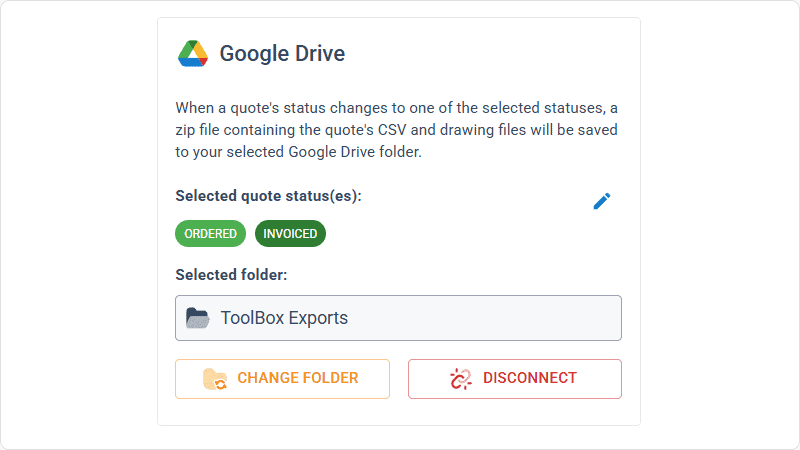
Getting started is easy
- Go to Settings > Organisation settings > Integrations in your Tempus Tools Tempus Tools account
- Connect your Google Drive and select your preferred folder
- Choose the quote statuses that will trigger automatic file saving
- Start building automations and workflows that fit your shop’s needs
This integration is designed to be flexible-whether you want to automate reporting, connect with business systems, or simply keep your files organised, Tempus Tools and Google Drive make it possible.
Ready to enhance your job shop efficiency? Try the new Google Drive integration today.
Read blog
Articles
0
min read
Is expensive, non-dedicated software holding you back from effortless laser cutting quoting?
Many laser cutting job shops still rely on generic or overly complex software, slowing down RFQ response times and creating bottlenecks that hurt profitability. Tempus Tools offers a fast, intuitive, and purpose-built quoting solution—with powerful features, simple setup, and transparent pricing—to help shops quote accurately, streamline production, and stay competitive.
Laser cutting is a precise task, requiring machinery tailored to specific requirements. Profitability is significantly boosted by the ability to be able to respond quickly to customer requests for quotes (RFQs), and efficiently deliver the product.
“With the time and energy often spent on selecting the right laser cutting machine, it’s amazing how often software is overlooked as a driver of productivity,” says Tempus Tools Head of Global Sales, Mark Washington.

“Sometimes laser cutting companies are stuck using software that wasn’t specifically designed for job shops, but it’s all that their team is used to using. Other times, expensive software is implemented, but only a small fraction of the features are actually used,” he says.
“And in many cases, it becomes so complex that a specialist is hired to manage quoting via the software – but what happens if they leave the company?”
Tempus Tools is the creator of dedicated quoting software, Tempus Tools, which can provide fast, accurate, and consistent laser cutting quotes that are professionally presented, ready to send back to the customer.
“Using software that isn’t specifically designed for laser cutting is like using a cricket bat to play tennis. It might get the job done, but it would be far more efficient and accurate with the tools designed for the job!” says Mark (pictured, right).
“In addition to providing quotes in minutes, Tempus Tools can also produce production documents with the click of a button, to add further efficiency to running a job shop floor,” he adds.
A shift in the industry
With customers demanding faster service, the industry is shifting to tailored laser cutting quoting solutions, to enhance their RFQ response times, and Mark sees this as part of a larger global trend.
“It’s evident across a number of industries – smarter players want to utilise technologies specifically targeted to their industry to out-pace competitors. And laser cutting job shops are enthusiastically getting on board with this trend,” he says.
“Tempus Tools has been specifically designed for laser cutting job shops. It’s quick to set up, intuitive, and user-friendly, so the entire team can use it with minimal training, instead of relying on one specialist.”
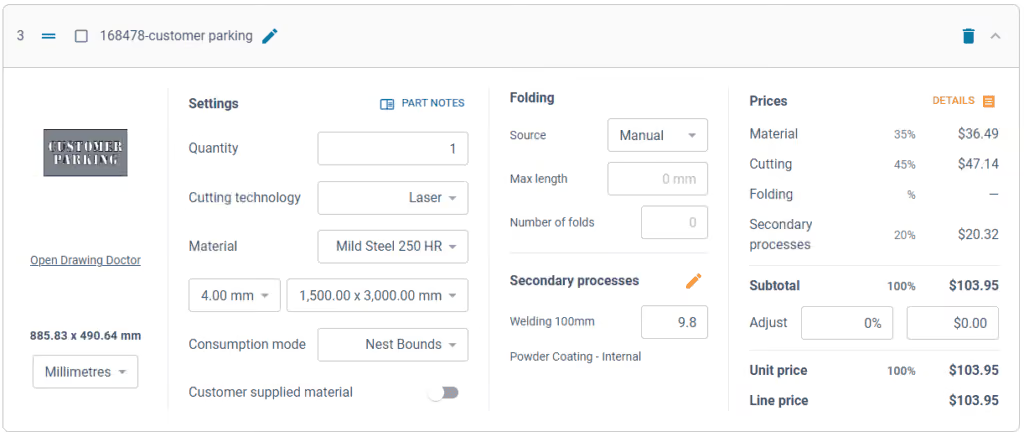
Tempus Tools cloud-based laser cutting quoting software can be set up with information on material price, cutting time, labour, and other relevant information, to generate quotes quickly and accurately, with repeatability.
“The Tempus Tools team has decades of experience in the laser cutting industry, from the shop floor, through to management, and running their own laser cutting enterprises, so we know the industry inside out – and we can support through setup and every step of the journey, for no additional charges,” adds Mark.
“A major inhibitor of laser cutting quoting software has often been cost, with powerful software that can do it all costing thousands per month. But if you only need dedicated laser cutting quoting software, our plans start from US$100 per month, and are packed full of features you will actually use,” he says.
Switching software – overcoming challenges
Even with the knowledge of the benefits of dedicated laser cutting quoting software, job shops can be hesitant about the time involved in switching, says Mark. He notes some of the main concerns:
- Time – often job shops have tried other software implementations and it’s taken months, and they just cannot afford to spend that time again. But Tempus Tools isn’t like other software. For a job shop with one laser, press brake, and standard secondary processes, set up takes less than 90 minutes.
- Staff training – job shops often believe their staff don’t have the time or capacity to learn a whole new software. But again, Tempus Tools is different. It’s designed to be user-friendly, easy to learn, and staff end up doing their jobs more efficiently, and enjoying the features right away.
- Hidden costs – this is a big factor for any software, and job shops are highly alert to cheap upfront costs, followed by lots of add-ons. No one likes to be “nickel and dimed”. For Tempus Tools, it’s a monthly or yearly subscription, and that’s all. No extra charges for support, upgrades, or training. Features all have a set pricing that’s clear from the outset.
- Too many programs – some job shops have two, three, or more different software programs – why add more, especially if they don’t talk to each other? That’s a totally valid concern. Tempus Tools outputs a CSV as standard with all the quote data, making integration seamless and easy.
“The Tempus Tools leadership team has decades of experience working from the shop floor to the top floor, so they understand the pain of changing software, and have designed Tempus Tools to be effortless and simple,” says Mark.
Tempus Tools features
Tempus Tools features that have been specifically designed for laser cutting job shops include:
- 3D model extractor. Identify, extract and unfold sheet-metal parts directly from 3D assemblies without a 3D software package.
- PDF to CAD convertor. Convert a vector PDF into a CAD file instantly. No tracing, no CAD package, just click on a part and extract it into your quote.
- Tube quoting. Easily drag and drop rectangular, square or round hollow sections into the tube module. It quickly calculates highly accurate cutting time and material consumption for pricing.
- Web Store. Let your customers get instant pricing and place orders from your website 24/7 with an online quoting portal.
- Secondary processes. Get accurate and consistent folding prices quickly using the built-in folding algorithm developed by specialists with decades of experience using brake presses.
- Drawing Doctor®. Upon upload of a 2D DXF or DWG file, Drawing Doctor® automatically corrects for double lines, dimensions, and small end points that are hidden in some drawings.
- Part Library. Part Library allows you to save parts that you’ve produced for a customer for re-use. Saves time on repeat orders and quotes, by dropping an existing part straight into the quote, ready to calculate, based on the latest pricing.
“These are just a few of our most popular features, but there are lots more within Tempus Tools, and our development team is constantly listening for customer feedback to determine what new features can be added,” says Mark.
“So for effortless laser cutting quoting, don’t let software hold you back, let it be the catalyst that drives business growth. We offer an obligation-free trial of Tempus Tools so that laser cutting job shops can see the difference for themselves.”
Read blog